How do I mark out studs at 450 or 600 centres?
Published · Updated · By Sai Nath
Hook your tape on the end of the plate and leave it there. Mark the first stud, then read every other mark off that same tape: the stud width plus 450 for the second, plus 900 for the third. With a 38 mm stud that is 488, 938 and 1388 mm. At 600 centres: 638, 1238 and 1838.
How to mark out studs on a plate
You need a tape, a square, a pencil and the plate laid flat. Mark the top and bottom plates together if you can, so the studs line up. The numbers below are in millimetres, with a 38 mm thick stud (the width the app uses in its own example for a 90 × 38 mm stud). Use your own stud thickness from the plans.
- Lay the plates out together. Set the ends flush and the faces up, side by side or one on top of the other, so one set of marks covers both.
- Hook the tape on the end of the plate and keep it hooked. This is the whole trick.
- Mark the first stud: 0 to 38 mm from the end. Its width is your Start.
- Add the interval to the Start for each next mark: 38 + 450 = 488, 38 + 900 = 938, 38 + 1350 = 1388. Each number is where the far face of that stud sits.
- Square each mark across both plates, then draw an X on the side of the line where the stud goes, so nobody places it on the wrong side.
- Stop before the end and look at the last gap (see below) before you mark the closing stud.
- Check one mark in the middle with a second reading from the other end of the plate. If it is out, you have found the error before any stud is cut or nailed.
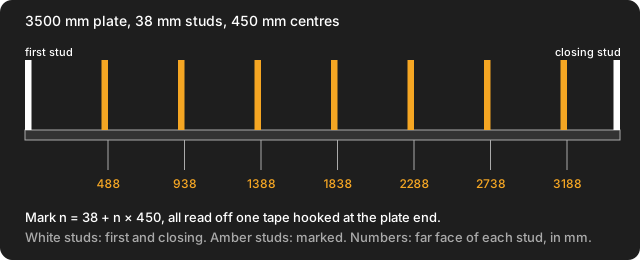
Do I measure to the centre or the edge of each stud?
Pick one and use it on every mark. The method above marks the far face of each stud, with the first stud sitting at 0 to 38 mm. Stud 2 then spans 450 to 488 mm, its centre is at 469 mm, and the distance from the centre of stud 1 (19 mm) to the centre of stud 2 is exactly 450 mm. So it is a true 450 mm on-centre layout. The usual mistake is mixing the two, which puts one stud width (here 38 mm) into the spacing.
Some framers instead mark centre lines at 450, 900 and 1350 mm from the plate end. That is another way some framers work, and it puts the first stud's centre on the end of the plate rather than the stud's face at the end. Follow whichever the plans or your framer use, and don't switch halfway along a wall.
Why do the marks come out 488, 938 and 1388, not 450, 900 and 1350?
Because the first stud takes up 38 mm of the plate before the first interval starts. Each mark is the Start plus a whole number of intervals: Mark n = Start + n × Interval. The 450 is the pitch between studs, and the extra 38 mm is the end stud's own width. Here are the first six marks at both common spacings.
| Stud | Mark at 450 (38 + n × 450) | Mark at 600 (38 + n × 600) |
|---|---|---|
| 2 | 488 mm | 638 mm |
| 3 | 938 mm | 1238 mm |
| 4 | 1388 mm | 1838 mm |
| 5 | 1838 mm | 2438 mm |
| 6 | 2288 mm | 3038 mm |
| 7 | 2738 mm | 3638 mm |
The first stud (0 to 38 mm) is not in the table because it sits at the Start. Notice that 1838 mm shows up in both columns. That is a handy cross-check: it is stud 5 at 450 centres and stud 4 at 600 centres, because 4 × 450 = 3 × 600 = 1800.
Why not just step the tape along?
Because every step adds its own small error, and the errors pile up. Move the tape 450 mm eight times, each time off by 1 mm, and the last stud is out by 8 mm. When every mark is read off one hooked tape, each mark carries only its own reading error, so a mark at 3188 mm is as good as the one at 488 mm. If your tape is too short for the wall, hook it at the end, mark as far as it reaches, then move it so a mark you already made lines up with a known number on the tape, and carry on from that number.
What if the wall length is not a multiple of 450 or 600?
Then the last gap is shorter than the others. Take a 3500 mm wall at 450 centres with a 38 mm closing stud at 3462 to 3500 mm. The marks run 488, 938, 1388, 1838, 2288, 2738 and 3188 mm. The next, 3638 mm, would be past the end, so stop at 3188. That stud spans 3150 to 3188 mm, and the gap to the closing stud is 3462 − 3188 = 274 mm. In total that is 9 studs, which matches the stud count from how many studs you need: 3500 ÷ 450 = 7.78, round up to 8, plus 1.
A short last gap is common. If your design needs the studs spread evenly, use equal spacings: 3500 mm at a 450 mm target is 8 spaces of 437.5 mm and 9 studs. Divide 3500 by 8 to get 437.5. Rounding goes to the nearest whole number of spaces, so it can also round down. For example, 5500 mm at a 450 target is 12 spaces of 458.3 mm, which is wider than 450. Check that the wider spacing is allowed before you use it.
Is it the same for floor joists and rafters?
The marking method is the same: hook the tape at the end, set a Start, add the interval for each mark. What changes is the Start, which is the thickness of the first member, and the interval, which comes from your plans or span tables. See how many joists you need for the count. A deck frame needs the same care with squareness before the marks go on: how to square a deck frame. This page covers the marks only. It does not cover cutting rafters, birdsmouths or fixing details.
Can the phone read the marks out loud while I mark?
Yes, in MeisterCalc. Running Measurements has a Speak button on its running table, which reads the marks using your phone's text-to-speech. Tap it again to stop. It is handy with both hands full of plate.
Doing it in MeisterCalc
Running Measurements works out the marks and keeps the table on screen while you work.
- Open Home ▸ Running Measurements.
- Enter Start (38). This is the distance from the end of the plate to the first stud, the end stud's width.
- Enter Interval (450, or 600 for the wider spacing).
- Enter Number of Marks. This is how many marks the table lists, and the in-app help suggests the total number of studs minus 1. For the 3500 mm wall, 7 marks take you to 3188 mm, and the closing stud is fitted at the end.
- Read the RUNNING TABLE: 488.0 mm, 938.0 mm, 1388.0 mm and on to 3188.0 mm. The first stud is at the Start and is not listed. Tap Speak to hear the marks, or Share results ▸ Share as Text or Share as PDF to send them.
The calculator is metric by default. For feet and inches, go to Settings ▸ Units ▸ Default units ▸ Imperial (ft/in); the common intervals then read 16 and 24 in. Equal Spacings, in the same app, takes an overall length and a target spacing and gives the whole number of spaces and the actual spacing. Stud Counter gives the number of studs for a wall length and spacing.
What do the building rules say about stud spacing?
Checked on 28 October 2026 against NCC 2022. For a timber-framed house, NCC 2022 Volume Two, clause H1D6, says the framing meets the structural requirement if it is designed and built to the listed standards, which include AS 1684.2 and AS 1684.4 for non-cyclonic areas and AS 1684.3 for cyclonic areas. Source: NCC 2022, Volume Two, Part H1 Structure. The standards are sold by Standards Australia, so this page states no spacing limit as a rule. Whether 450 or 600 mm applies to your wall comes from your plans, your engineer's design or your frame supplier's layout, and the lining maker's installation guide sets its own maximum centres. The full explanation is in the standard stud spacing in Australia.
MeisterCalc marks out whatever spacing you enter. It does not choose one, and it does not make a wall comply. Your council, the NCC, or the NZ Building Code and Approved Documents apply.
What Running Measurements doesn't do
- It doesn't know your wall. You choose the Start, the interval and how many marks.
- It doesn't plan the plates, noggings, corners or openings. Count those from the plans, using the wall framing calculations guide.
- It won't draw the closing stud. Work out the last gap yourself, as above.
- The marks are as accurate as the tape you hook and the line you square across.
- It runs on Android only. There is no iPhone version yet; you can join the iOS waitlist.
Try it
Running Measurements is not one of the three free calculators. Concrete, Stairs and Check Square are free; the other 12 unlock with a weekly subscription that starts with a 3-day free trial, or with a one-time lifetime unlock, and Google Play shows the prices in your currency. The calculations work offline, on site with no signal.